Hubs
The four starter Hubs, creating a Hub of your own, renaming it, and what removing one involves.
A Hub holds one kind of thing. Every Entry in it has the same Signals, so a Hub is both a home for your records and the definition of what they look like.
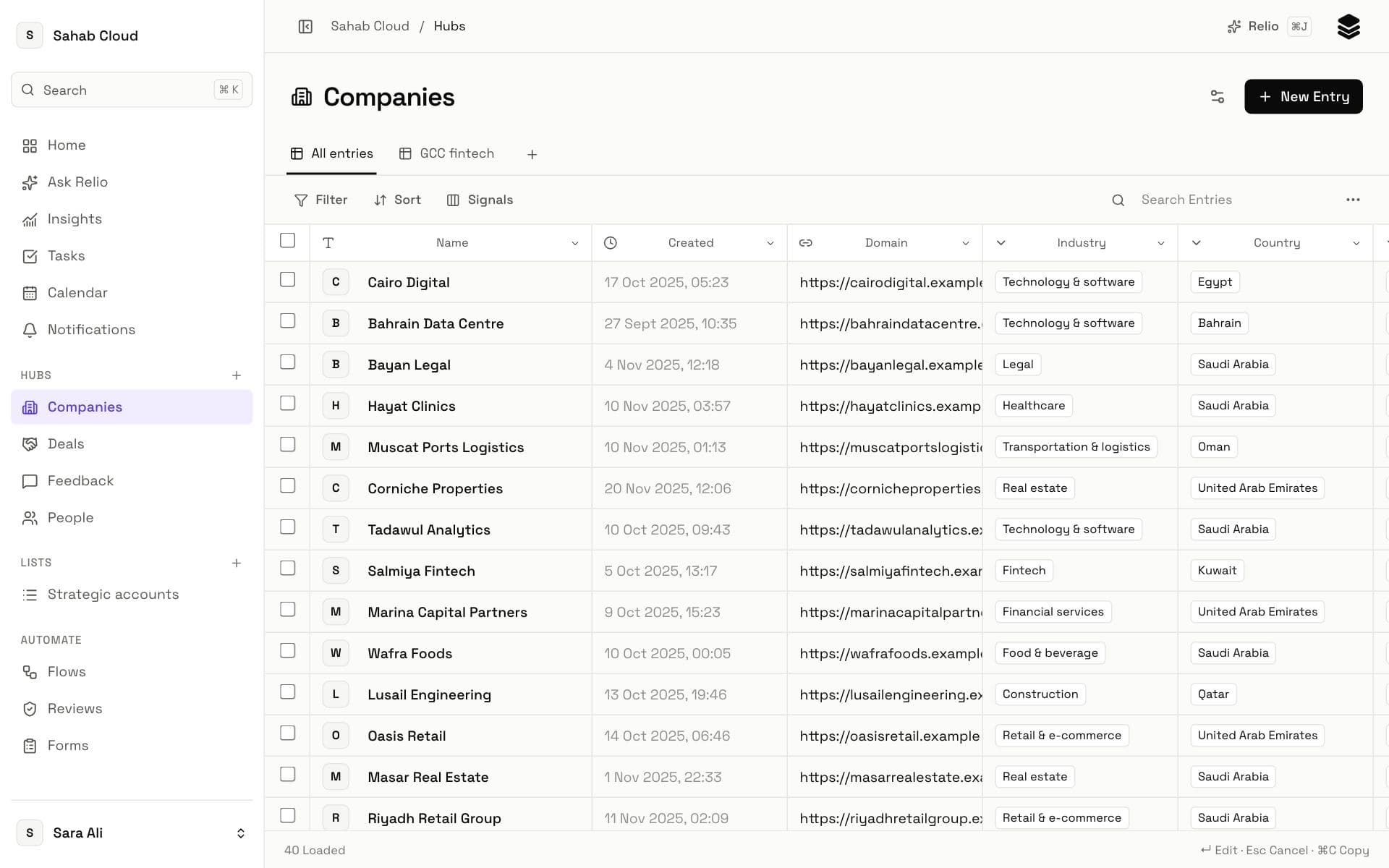
The starter Hubs
Every workspace starts with four Hubs, already set up and linked to each other.
| Hub | Comes with | Linked to |
|---|---|---|
| Companies | Domain (unique), Industry, Country, Employees, Revenue (SAR), Description | People as its Team, Deals as its Deals |
| People | Email (unique), Phone, Job title, LinkedIn | Companies as Company |
| Deals | Value (SAR), Stage (Lead → Won or Lost), Probability, Expected close, Owner | Companies as Customer |
| Feedback | Rating (1–5), Comment, Received, Channel | Your customers, for Insights |
Every Hub also has a Name Signal. You can add Signals to the starter Hubs and rename them, but you cannot remove them: Relio's Insights and templates rely on them.
When to create a Hub
Create a Hub when you track a new kind of thing that the starter Hubs do not cover: Properties, Projects, Products, Suppliers, Students, Vehicles.
Do not create a Hub for a stage or a group of something you already track. *Leads*, *Customers*, *VIP accounts* and *Renewals* are People, Companies or Deals at a point in a process — that is a List or a View. The data model explains the difference with examples.
Creating a Hub
Only workspace admins can create Hubs.
- In the sidebar, click + next to Hubs (or press ⌘K and choose New Hub).
- Enter the Hub's name in the plural, e.g. *Properties*.
- Check One record is called — the singular, e.g. *Property*. In English Relio suggests it for you. It is used wherever one record is meant, like New Property.
- Pick an Icon.
- Click Create Hub. Relio opens the new Hub, ready for its first Entry.
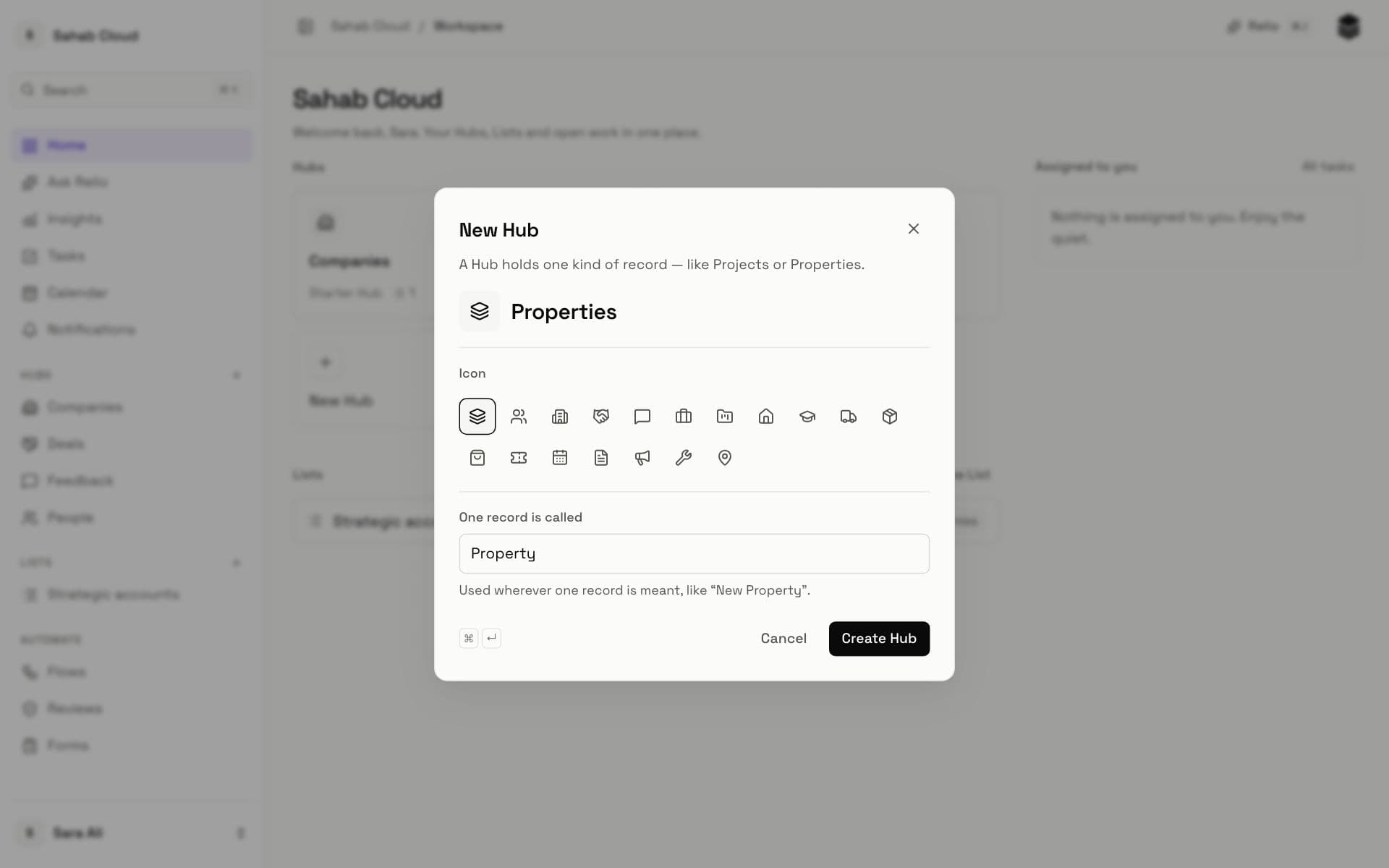
A new Hub has only a Name. Add the Signals it needs next — see Signals — and connect it to your other Hubs with Links.
Renaming a Hub
Open the Hub, click the Settings icon (the sliders, next to New Entry) and edit the name at the top of the Signals dialog, then Rename. Renaming never changes your data, Views or Flows.
Removing a Hub
Removing a Hub is for one you no longer use. In the Hub's Settings, choose Remove Hub. Relio first checks whether anything still depends on it — Lists over it, Links to it, Flows or Forms that use it — and shows you what to resolve, up to the first ten names. Once nothing does, you can remove it.
Who can see a Hub
By default everyone in the workspace can see every Hub. Admins can hide a Hub, or individual Signals in it, from particular members, teams or roles in Settings → Permissions. A hidden Hub disappears from the sidebar, search and Relio AI for those people.
Checked against Relio on 29 October 2026