Your first Entries
Add a company and a person who works there, link them, and log your first note.
In this lesson you will add a company, add a person, connect them, and record a conversation. It is the core of using Relio, and it takes four minutes.
1. Add a company
- Open Companies in the sidebar.
- Click New Entry.
- Enter the company's name. Add its Domain if you know it — Domain is unique, so Relio will never let you create the same company twice.
- Click Create.
The company opens in the preview beside the table.
2. Add a person and link them
- Open People and click New Entry.
- Enter their name and Email.
- Click Create.
- In the preview, open the Related tab, find Company and click Add Link.
- Search for the company you just added and choose Link.
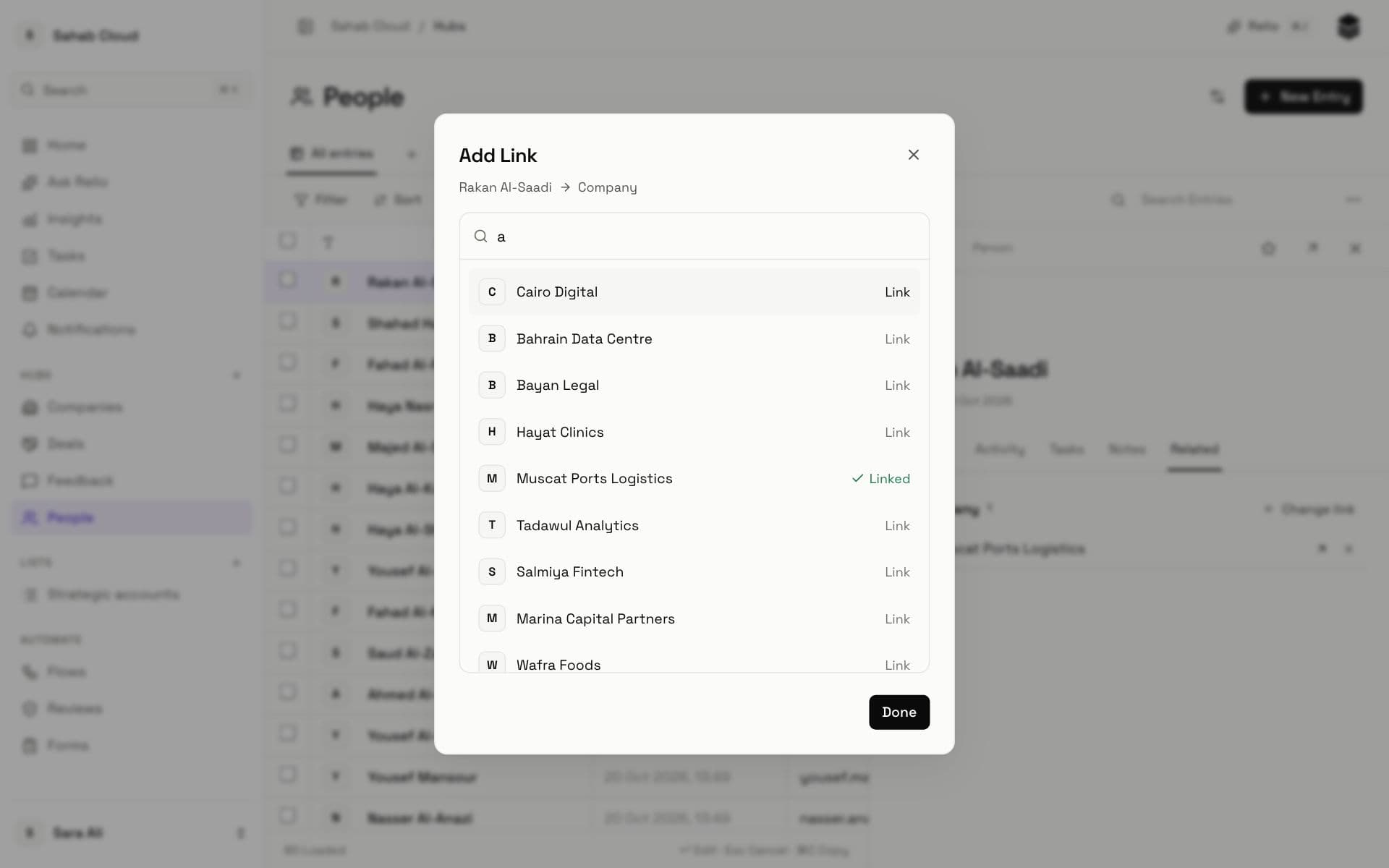
Now open the company again: the person is in its Team. That is one Link, seen from both sides — there is nothing to keep in sync. More about Links.
3. Log a note
- In the person's preview, open the Activity tab.
- Choose Note, Call or Meeting, write what happened, and save.
It appears on the timeline, with your name and the time, for everyone who can see this person.
4. Have many to add?
Typing a few is the best way to learn. For the rest, import a CSV or Excel file: Relio matches your columns to Signals, checks every row, and shows you the result before writing anything.
You did it
You now have linked records with history — the foundation of everything else. Next: Shape your Hubs.
Checked against Relio on 29 October 2026