Flows
Automating routine work: triggers, conditions, actions, Relio AI decisions and the confidence policy, publishing versions and reading run history.
A Flow does a routine step for you whenever something happens. *When a deal reaches Proposal, create a follow-up Task for its owner.* *When a company is added with revenue over SAR 1M, add it to Target Accounts.* Flows run the same way every time, for every Entry, without anyone remembering to.
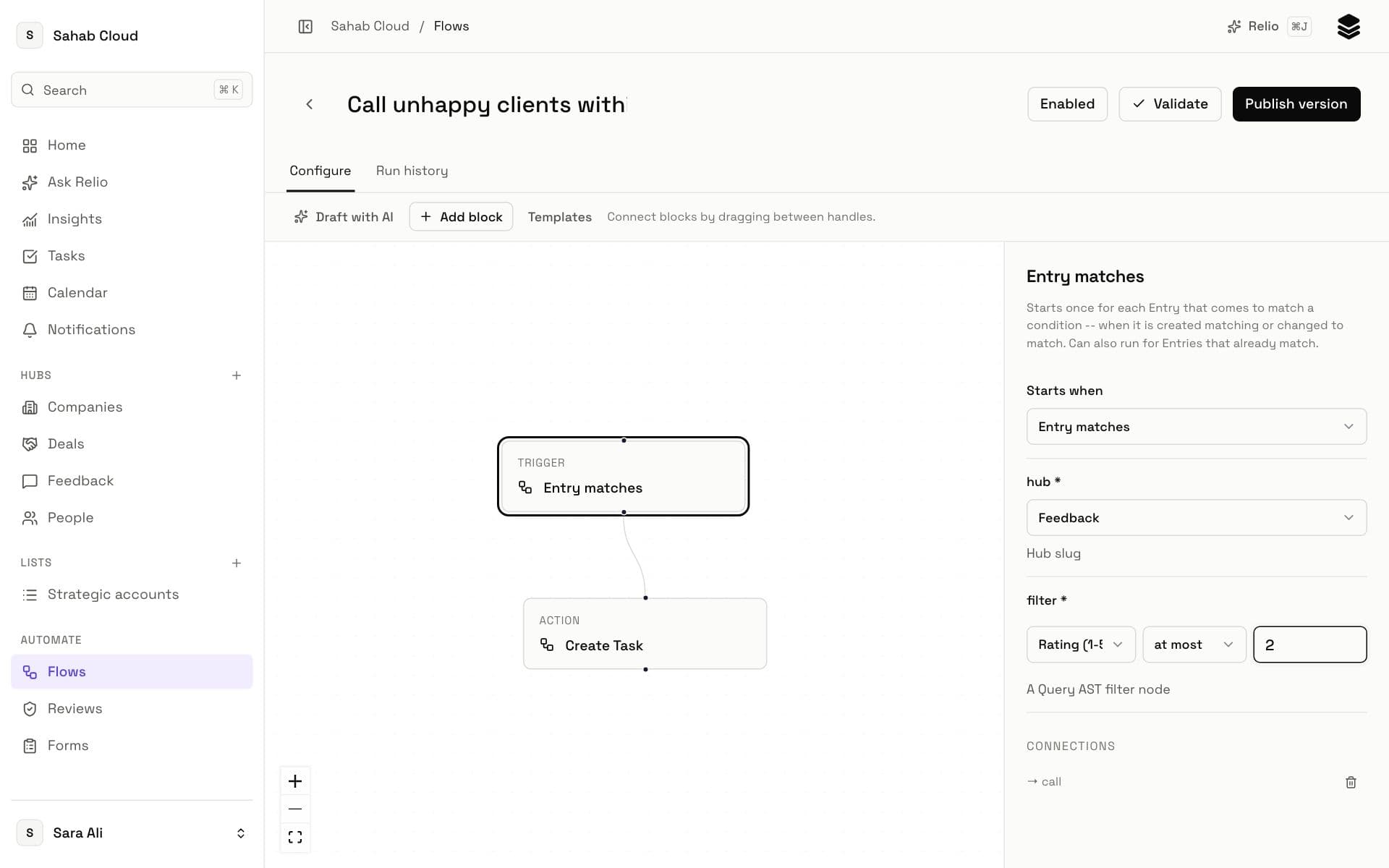
How a Flow is put together
A Flow is a set of blocks connected on a canvas, read from its trigger onwards.
1. A trigger — Starts when. Every Flow has exactly one:
| Trigger | Starts when |
|---|---|
| Entry created | A new Entry is added to a Hub — by hand, by import, by a Form. |
| Entry updated | Any Signal on an Entry changes. |
| Signal changed | One of the Signals you choose changes — Stage, for example. Add a Condition to act only on a particular value. |
| Entry matches | An Entry comes to match a filter it did not match before — "Value over 100k and Stage is Negotiation". |
| Activity logged | A note, call or meeting is logged on an Entry. |
2. Conditions. A Condition block checks the Entry against a filter and continues only if it matches. Use them to narrow a broad trigger.
3. Actions. What the Flow does:
| Action | Does | Risk |
|---|---|---|
| Update Signal | Sets a Signal on the Entry. | low |
| Add to List | Adds the Entry to a List. | low |
| Create Task | Creates a Task linked to the Entry, assigned to someone and due a number of days later. | medium |
| Call webhook | Sends the Entry to another system's URL. | high |
4. Decide (Relio AI). A Decide block asks Relio AI a question about the Entry — *Is this lead a good fit?*, *Which team should own this account?* — and continues down a Decision branch for its answer. See the confidence policy below.
Creating a Flow
- Open Flows and click New Flow, or start from Templates.
- Name the Flow.
- Click the trigger block and choose what Starts when.
- Use Add block to add conditions, decisions and actions; connect them by dragging between their handles.
- Click a block to configure it in the panel beside the canvas.
- Click Validate to check it — Relio points out anything missing.
- Click Create.
New Flows start Disabled, so nothing happens until you are ready. Click Disabled to switch it on.
Templates
| Template | What it does |
|---|---|
| Lead qualification | When a person is added, decides whether they are a qualified lead and how senior they are; qualified leads get a follow-up Task. |
| Message and call intent | When a note, call or meeting is logged against a person, classifies what they want; purchase intent becomes a Task for sales. |
| Deal risk | When a deal's stage, value, probability or close date changes, judges whether it is at risk; risky deals get a review Task. |
| Account routing | When a company is added, decides which segment it belongs to and opens an onboarding Task named for that segment. |
Choosing a template replaces the unpublished draft you are editing.
Relio AI decisions and the confidence policy
Relio AI never acts on its own. A Decide block answers and records; what happens next is governed by the block's Confidence policy:
| Setting | Default | Meaning |
|---|---|---|
| Automatic threshold | 95% | At or above this confidence, actions after the decision run automatically… |
| Always require approval at | high | …unless the action's risk is at or above this level — then a person approves it, however confident Relio AI is. |
| Review threshold | 75% | Between this and the automatic threshold, low-risk actions run; others wait for review. |
| Below review threshold | Human review | Below this, the action waits for review — or is skipped, if you choose Skip action. |
Actions waiting for a person go to Reviews, where an admin sees the decision, its confidence and the exact action proposed, and chooses Approve or Reject. Approving runs exactly what was shown — never a re-worked version.
Publishing changes
A Flow has versions. Editing a live Flow does not change what is running — the badge says Unsaved — until you click Publish version. Runs already in progress finish on the version they started with.
Running a Flow for existing Entries
Triggers fire on changes from now on. To apply a Flow to Entries that already match, use Run for existing Entries on an enabled Flow.
Run history
Run history lists every run: its status, when it started and how long it took. Open one to see each block's input and output, and Retry a failed run.
Checked against Relio on 29 October 2026